“One week after publishing, my content still doesn’t show up in Google search” is a question we hear often in consultations. Even after requesting indexing in Search Console, all you get back is the message “Crawled - currently not indexed.” Meanwhile, a similar post from a competitor is already ranking near the top.
At this point, many people keep clicking the request indexing button. But requesting indexing is closer to putting the URL back into the review queue—it does not resolve the reason it was excluded. Google has clear, stage-specific reasons for not indexing a page, and those reasons vary from page to page.
In this column, using the three core principles of how Google indexing works—the indexing pipeline (Discovery → Crawling → Indexing)—we will walk you through how to diagnose which stage your page is stuck in and how to fix it, in manual form.
Google Indexing Works as a 'Pipeline'
Google indexing refers to the entire process in which Google discovers a page, collects its content by crawling it, and stores it in its database so it can appear in search results. These three stages operate sequentially, and a page that does not pass one stage cannot move on to the next.
| Stage | What Google Does | Search Console Message When Blocked |
|---|---|---|
| 1. Discovery | Recognizes the existence of a URL through links and sitemaps | "URL is not on Google" |
| 2. Crawling | The bot visits the page and collects its content | "Discovered - currently not indexed" |
| 3. Indexing | Evaluates the collected content and stores it in the index | "Crawled - currently not indexed" |
There is one important fact here. Google does not guarantee indexing for every page it crawls. Google’s official documentation also explains that even if indexability appears positive, actual appearance in search results is not guaranteed. In other words, indexing is not a formality—it is the result of evaluation.
So instead of asking, “Why isn’t it indexed?”, you should reframe the question in one of three ways: Did Google fail to discover my page? Did it discover the page but choose not to crawl it? Or did it crawl the page but decide it was not worth indexing?
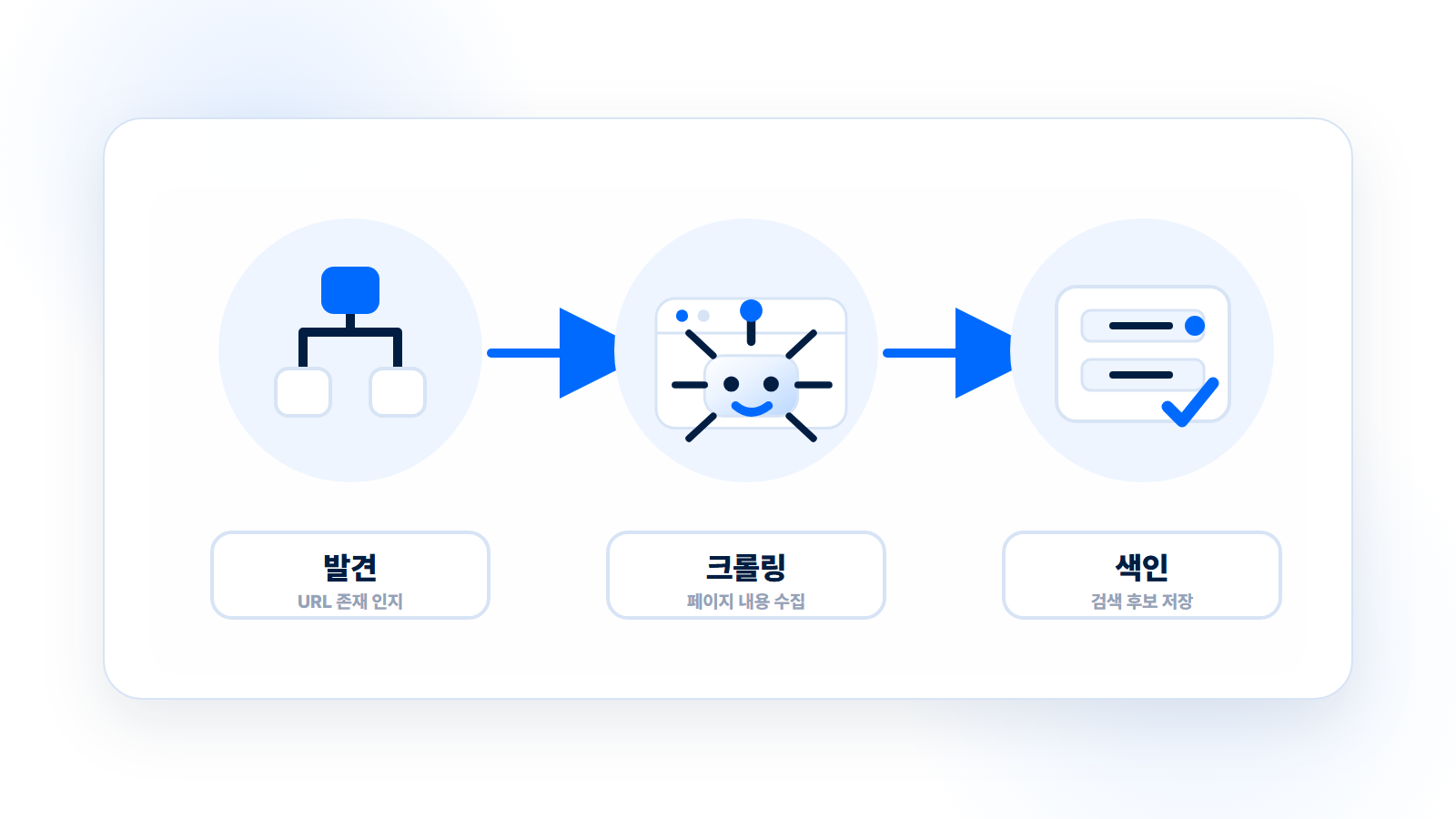
Diagnose It: Which Stage Is My Page Stuck In?
Diagnosis comes before fixes. If you enter the missing page URL into the 'URL Inspection' tool in Search Console, Google will show you exactly how far that page has moved through the pipeline.
We recommend checking in this order:
- Enter the missing URL in the Search Console search bar
- Check whether “URL is not on Google” appears
- Open the 'Page indexing' section and review the detailed reason — the phrase shown here is the blocked stage
- In the 'Crawling' section, check the last crawl date and whether the crawler could access the page
Here is what each detailed reason means:
- “Unknown to Google” → Blocked at Stage 1 (Discovery). Google does not know this page exists
- “Discovered - currently not indexed” → Waiting at Stage 2 (Crawling). Google knows the URL but has chosen not to visit it yet
- “Crawled - currently not indexed” → Excluded at Stage 3 (Indexing). Google visited the page and reviewed the content, but decided it has low indexing value
- “Page with redirect” / “Alternate page with proper canonical tag” → Another URL has been designated as the indexing target. In many cases, this is normal behavior rather than an error
As with the last two examples, many indexing exclusion messages are actually normal and should not be touched. We cover in detail how to distinguish between normal exclusions and problematic exclusions in a separate column, Not Indexed: Do You Need to Worry About All of Them?, so we recommend reviewing that as well after diagnosis.
Stage 1 Fix: When Google Cannot Discover the Page
Most problems at the discovery stage come down to a missing path. Google discovers URLs through two primary paths: links from other pages and sitemaps. If neither exists, that page is effectively an isolated island on the web.
1) Check sitemap submission status
In Search Console, go to the [Indexing → Sitemaps] menu and confirm that sitemap.xml has been submitted and that the status is 'Success.' As a rule, a sitemap should include only the canonical URLs that should be indexed. Also check whether the missing page is included in the sitemap.
2) Add internal links
A stronger discovery signal than a sitemap is an internal link. If you place a link to the new page on an already indexed page that receives traffic, Googlebot can naturally discover the new page when it revisits the existing one. We recommend making it part of your publishing process to add internal links from one or two relevant existing articles every time you publish new content. For internal link planning, refer to the link-building section of our Content SEO column.
3) Check for orphan pages
A page that cannot be reached through any internal link is called an orphan page. If a page is not in the menu, not in any listing, and not linked within body content, it depends entirely on the sitemap—making both discovery and crawl priority lower.
Stage 2 Fix: When Google Discovers It but Does Not Crawl It
“Discovered - currently not indexed” is a signal that Google knows the URL exists but has not visited it yet. In practice, this is often where the real frustration begins.
As the official explanation suggests, the crawl may be delayed due to site load or crawl prioritization. Operationally, insufficient internal links, server response issues, and a growing number of duplicate URLs often contribute as well.
The main causes of crawl budget waste are as follows:
- Parameter URL proliferation: Hundreds of effectively identical pages created by filter, sort, and tracking parameters (
?sort=,?ref=). You should use a canonical tag to designate the preferred URL - Slow server response: If responses are slow, Google reduces crawling itself to lower the burden on the server
- Large volumes of low-quality pages: Cases where low-value tag pages, empty search results pages, and similar URLs are mixed into the crawl target set
If a key page is stuck at this stage, the right order is not to press request indexing first, but to clean up URLs that are not worth crawling so that crawl budget can be concentrated on your key pages. You should adjust internal links, sitemap inclusion, canonicals, and noindex based on the situation. However, if you block the URL in robots.txt, Google may be unable to confirm noindex or canonical signals, so if your goal is simple index exclusion, it is safer to organize your canonical URLs and indexing policy first.
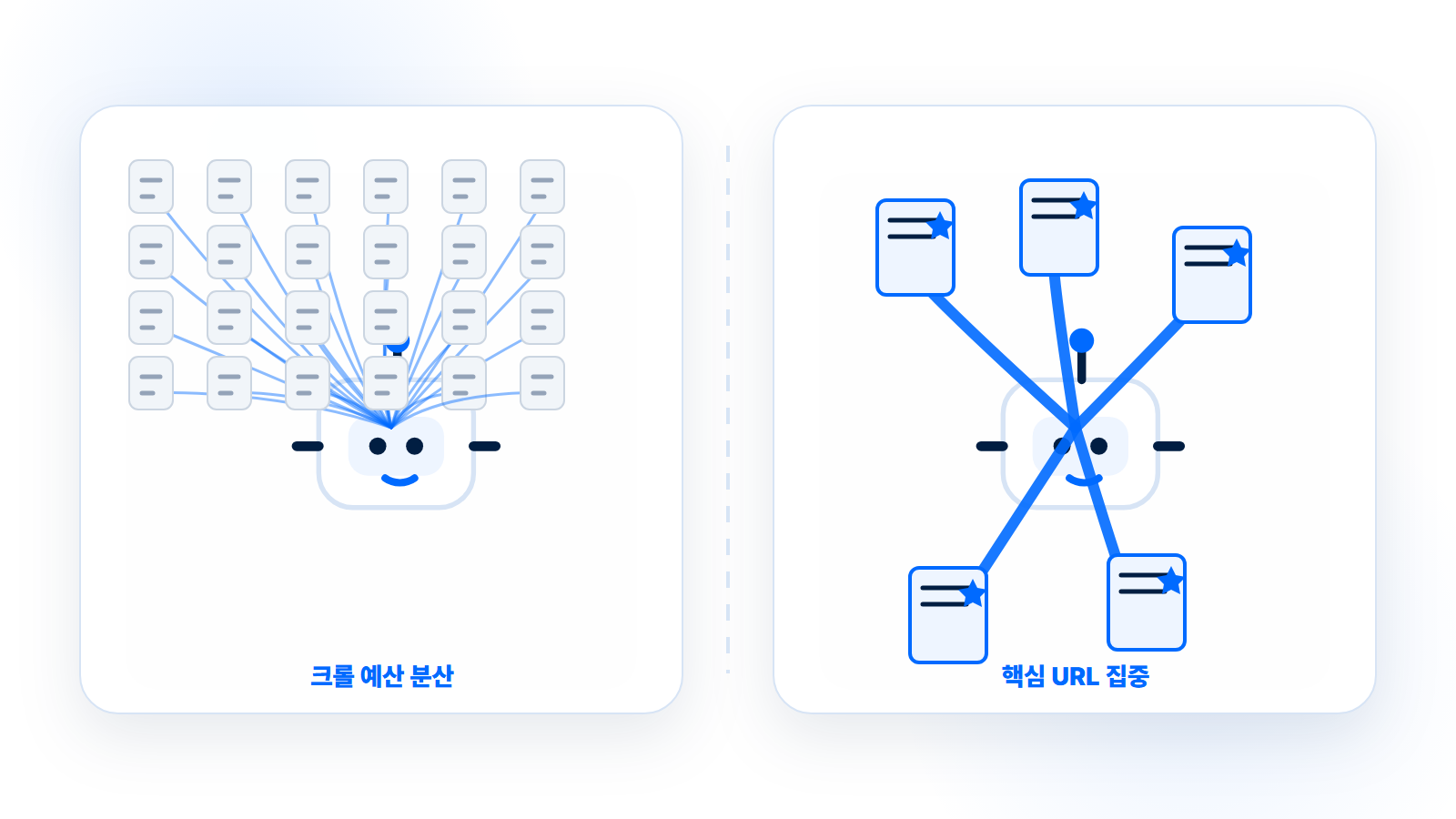
Stage 3 Fix: When Google Crawls It but Does Not Index It
This is the most frustrating stage—and also the most common one. “Crawled - currently not indexed” is often not a technical issue, but the result of a quality evaluation. From this stage onward, you should begin with the assumption that Google may be evaluating the site itself as low quality.
If Google fully reviewed the content and still chose not to index the page, it means it judged that the page does not provide enough unique value to be added to the index. At that point, it is often wise to consider a substantial rewrite.
Review in the following order:
1) Duplicate or near-duplicate content
Check whether the content is effectively the same as another page on your site or another document on the web. Typical examples include ecommerce pages that reuse manufacturer descriptions verbatim, or mass-produced landing pages that only swap out the location name.
2) Unique value of the content
Compare the page to documents already ranking highly and ask whether it provides new information, proprietary data, or firsthand experience. From Google’s E-E-A-T perspective, if there is no clear reason this page specifically needs to exist, its indexing priority will keep getting pushed back.
3) Thin content
Pages with only a few sentences, or pages with only images and no textual information, have difficulty being recognized as worthy of indexing. If it is an image-heavy page, strengthen the machine-readable signals with ALT text, explanatory paragraphs, and schema markup.
Ultimately, the solution at this stage converges on one thing: do not resubmit the page—rewrite the page.
In fact, across the sites we have diagnosed, we have repeatedly seen Stage 3 exclusion pages get indexed faster when the body content was strengthened and republished than when indexing requests were simply repeated.
How to Use the Request Indexing Feature Correctly
The 'Request Indexing' button in Search Console is not a master key—it is a priority review request. There are two correct times to use it:
- When you have published a new page and are confident it can pass the checks for Stages 1–3 above
- When you have meaningfully revised and improved an existing page and it needs re-evaluation
By contrast, repeatedly requesting the same URL without making any changes is ineffective.
Google’s documentation also states that requesting indexing does not guarantee actual indexing, and that URLs in the “Crawled - currently not indexed” state do not need to be resubmitted for crawling.
What determines indexing speed is not how many times you click the button, but whether you removed the reason for exclusion before requesting it.
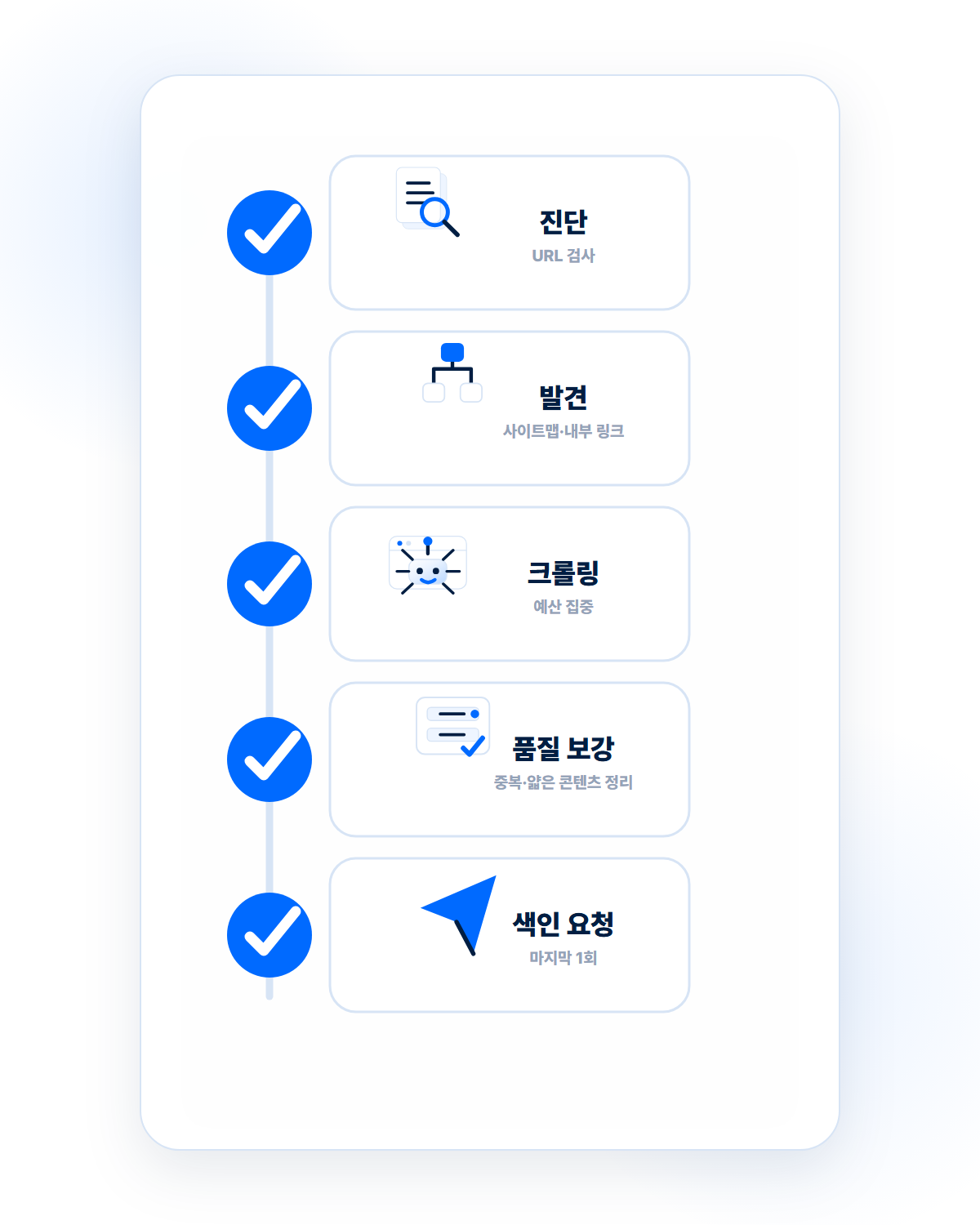
Summary: Indexing Issue Checklist
Finally, here is the entire manual condensed into one page.
- Diagnosis — Use the URL Inspection tool to confirm which stage is blocked
- Discovery stage — Check sitemap inclusion + add 1–2 internal links + resolve orphan pages
- Crawling stage — Clean up parameter URLs, improve canonicals, and check server response speed to focus crawl budget
- Indexing stage — Remove duplication, strengthen unique value, expand thin content, and republish
- At the end — Request indexing once
Indexing is not the final gateway of SEO—it is the first one. No matter how good your content is, if it is not indexed, it effectively does not exist in the search market.
If your new content has not been indexed for more than a week, do not click the request button again right away. First, check which stage of the pipeline we covered today is blocking it.
References
- Google Search Console Help, URL Inspection Tool
- Google Search Console Help, Page Indexing report
FAQ
Q. How long does Google indexing take?
For a new page, it can take anywhere from a few days to several weeks, and it varies significantly depending on the site’s crawl frequency and the quality of the page. There is no guaranteed way to force indexing, but sites with proper sitemap setup, internal links, and strong content quality tend to be indexed faster.
Q. Does clicking request indexing multiple times make it faster?
No. Repeated requests for the same URL do not increase priority. The fastest approach is to fix the reason for exclusion first, then submit one request.
Q. Is “Crawled - currently not indexed” a penalty?
No. It is not a penalty, but the result of a quality evaluation. In most cases, it can be resolved by strengthening the page’s unique value and republishing it.

About the Author
Joshua: Lead SEO & GEO Consultant
- Built a zero-cost structure generating KRW 1.2 billion in annual revenue through SEO alone - Closed a KRW 700 billion deal through SEO alone - Low-cost, high-efficiency marketing specialist Former) Marketing Lead at a financial services firm Current) Runs SEO/GEO agency 238lab Track record) Led multiple SEO consulting projects, including Korea's No.1 AI community